
One iPad. Every arrival, recorded.
From the door to your roster in four steps.
Pair the iPad
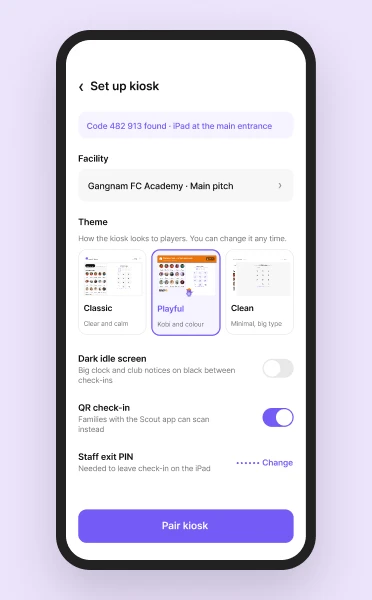
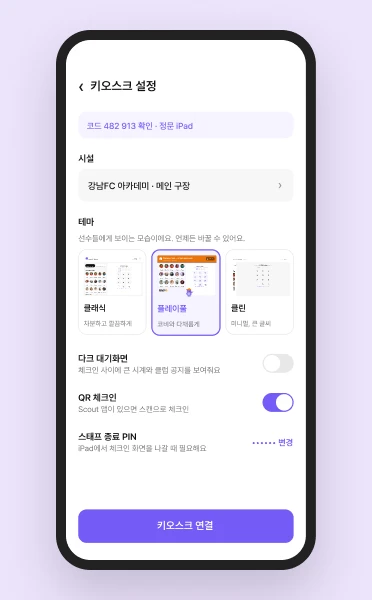
Open the kiosk app, type its 6-digit code into Scout on your phone, pick the facility and a theme. About a minute.
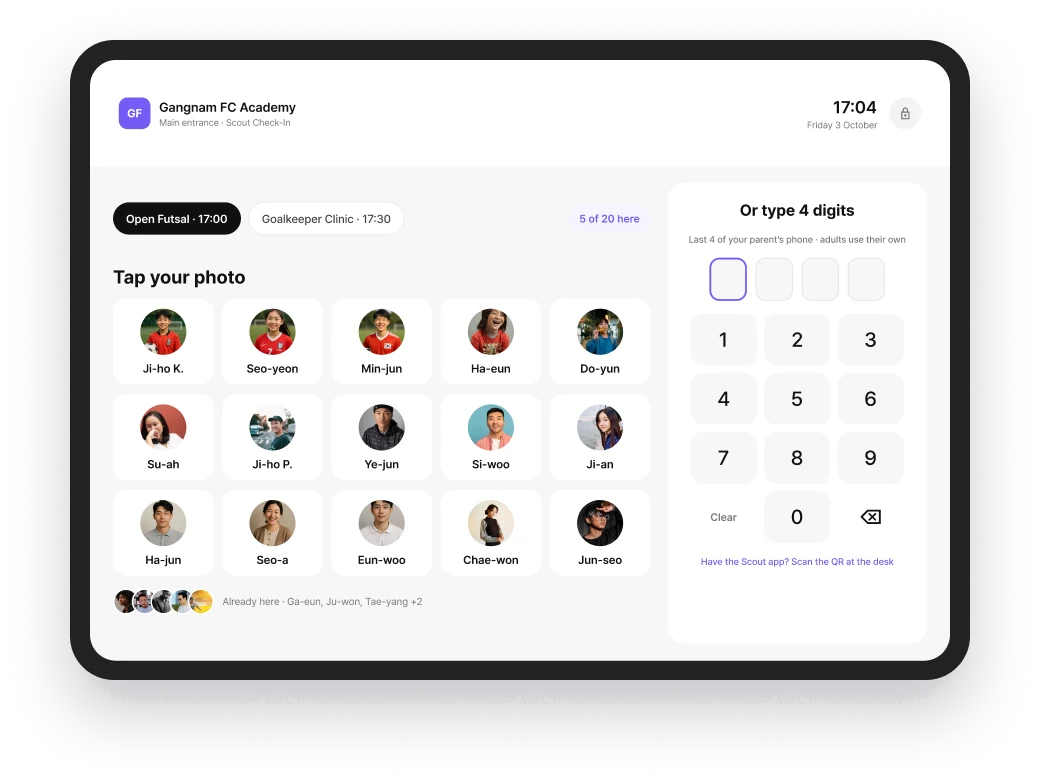
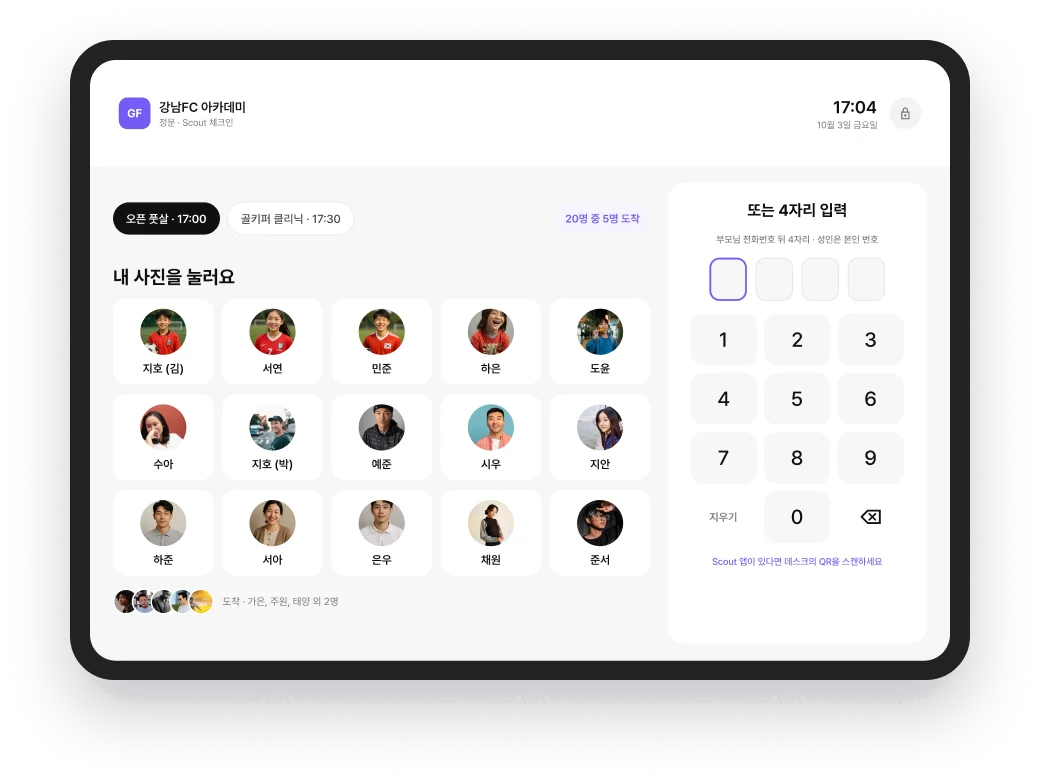
Players tap their photo
No accounts, no app for kids. No photo yet? They type the last 4 digits of a parent's phone. Siblings check in together.
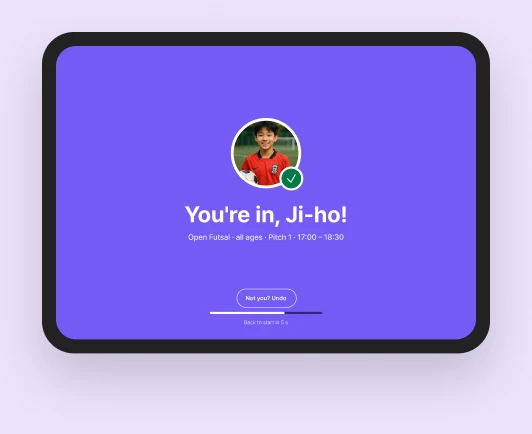

“You’re in.”
A big check and their name. Tapped the wrong face? Undo within 5 seconds.
Coaches see who’s here
Your roster shows each arrival as it happens. If the Wi-Fi drops, offline mode keeps check-in running. A coach can revoke a kiosk from the Scout app at any time.
Three things clubs set up on day one.
Pick the theme that fits your club
Choose Classic, Playful or Clean when you pair the kiosk. Classic is the Scout look as-is, Playful adds Kobi, brand colours and confetti, and Clean is a neutral canvas with big type.
Turn on the dark idle screen for the lobby
Switch on the dark idle screen when you pair the kiosk, so the iPad rests on a dark screen between classes instead of lighting up the lobby.
Ask parents to add a photo in the Scout app
Players tap their own photo to check in, so a photo makes arrival a single tap. Parents add it in the Scout app, with the parental consent our Privacy Policy requires for children under 14. Until then, players type the last 4 digits of a parent’s phone.
“[Pilot club quote goes here, e.g. what changed at the front door after the first month.]”[Name, role, club, after the pilot]
Check-in, answered.
Which iPad do I need?
Scout Check-In is an iPad app on the App Store. Check the App Store listing for the supported iPad models and iPadOS version.
Do kids need an account or a phone?
No. Kids need no account, no app and no phone of their own. They tap their photo, or type the last 4 digits of a parent’s phone number. Adults use their own number.
What if the Wi-Fi drops?
The kiosk has an offline mode, so check-in keeps working when the connection drops.
What happens to children’s photos?
A child’s photo is personal information about a minor, and Scout handles it under our Privacy Policy. For children under 14 we obtain verifiable parental or guardian consent, and parents can review their child’s information, ask for its deletion, or withdraw consent at any time.
What does it cost?
The app is a free download from the App Store. A coach or club admin pairs it once from the Scout app.
Put an iPad at the door this week.
Free on iPad. Pair it from the Scout app in about a minute.